
Your First AI Diagnostic Report
Right after connecting an account, try "Diagnose my ads over the last 7 days" — this article walks you through what each section of the AI report is telling you.
What this article covers
- See roughly what an AI diagnostic report looks like
- Understand what each section is telling you
- Learn to ask follow-up questions based on the report
How to start
Once your account is connected, send a line in the chat:
"Diagnose my Meta ad performance over the last 7 days"
or
"My ROAS dropped recently — help me figure out why"
What the report looks like
A complete diagnostic report usually has three layers — start with the big picture, then the charts, and finally the checklist. It builds up from "see clearly" to "know what to change."
① The big picture — account health at a glance
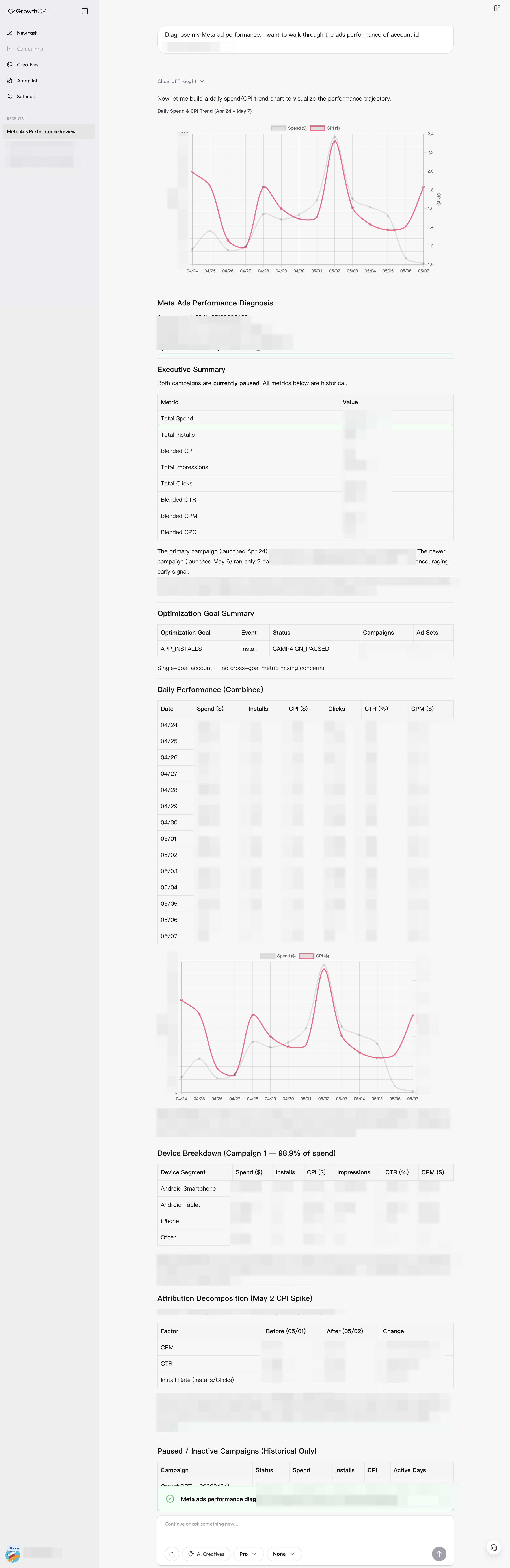
Full report overview (anonymized) · Executive summary, full key-metrics table, daily trend chart, device breakdown, attribution decomposition, historical campaigns — one report that explains the whole account's health
② Comparison charts — which Campaign is dragging things down
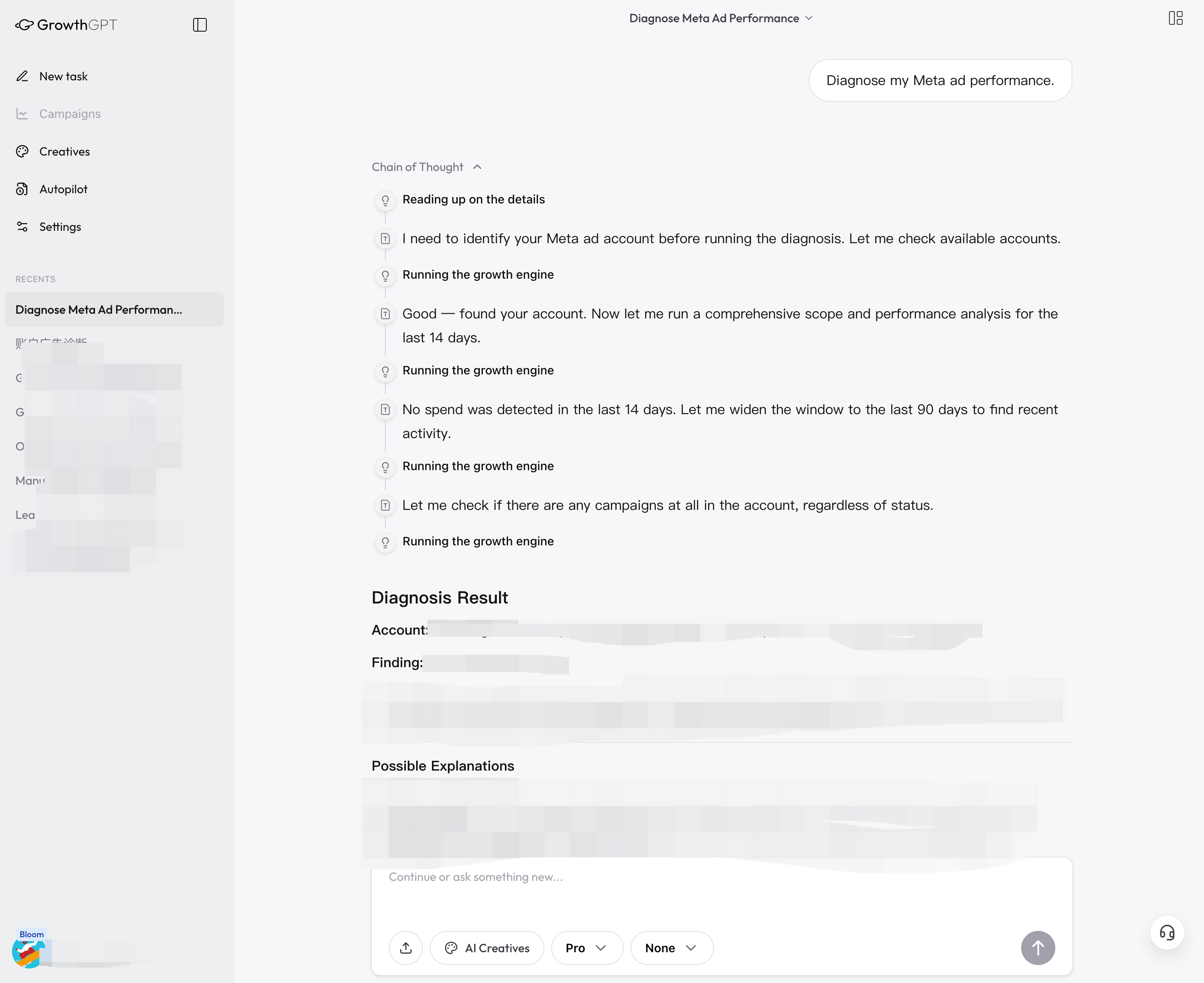
AI-generated comparison charts · Total spend comparison + cost vs. purchase volume — charts instead of words so you can judge at a glance
③ Action checklist — AI tells you exactly what to change
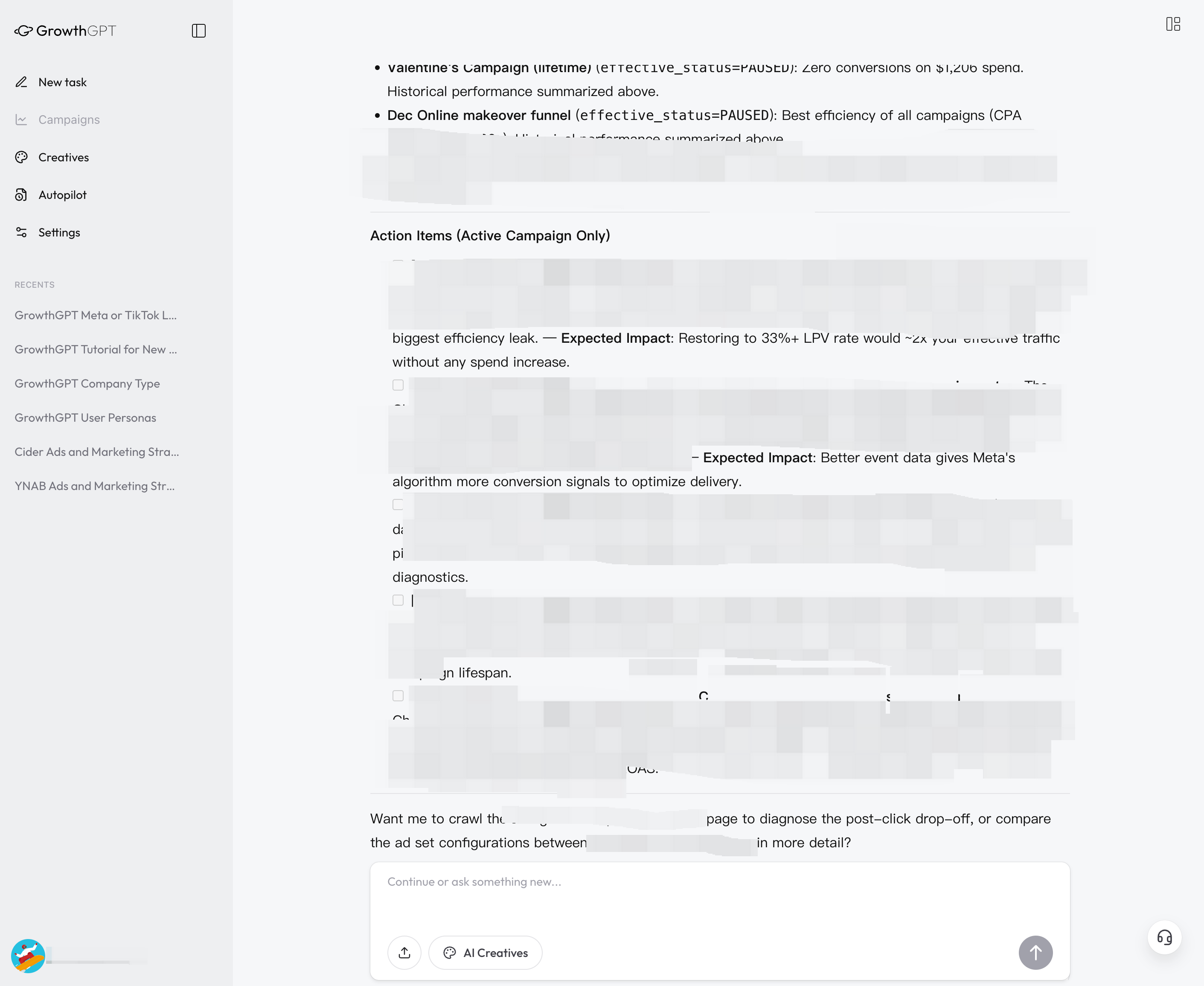
This part is the most useful · AI gives you a priority-sorted checklist, each item with "how much improvement to expect." A single "Execute items 1, 3, and 5" gets AI moving
Reports vary by account, but they usually contain 4 sections, building up from "see the situation" to "take action":
After reading the report, ask these follow-ups
The report itself is just the start — these follow-ups make AI's advice more concrete and actionable:
- "Tell me more about [Campaign name] you mentioned — why is this happening?"
- "Following the priority order you suggested, draw me up an execution checklist for this week"
- "If I were to change something right now, which one is the safest to touch first?"
- "Which ones do I have to do manually? Which can you execute for me directly?"
A suggestion: after reading the report, don't immediately ask AI to "execute everything." Make 1-2 changes manually first to get a feel for how AI reasons — once it feels reliable, then consider turning on Autopilot. See "Three little habits" in the Autopilot chapter for more.
Connect Your Ad Account (The Core One)
GrowthGPT's real value kicks in once you connect an ad account — this article shows you both ways to connect (chat + the Settings button) and what happens right after.
Scenario 1 · Build me a strategy
Not advertising yet and want to plan first? Tell AI your product + market + budget, and get a complete growth map back.