
Connect Your Ad Account (The Core One)
GrowthGPT's real value kicks in once you connect an ad account — this article shows you both ways to connect (chat + the Settings button) and what happens right after.
Why this is the most important article
Without connecting an account, GrowthGPT does roughly what a smart AI assistant does — strategy research, competitor analysis, creative generation. Once you connect an account, it changes character entirely — it can actually see your data, move your budget directly, and optimize your ads automatically. That's the fundamental difference from a generic AI tool.
Two ways to connect (pick either)
Way A · Just tell it (recommended)
Type whatever feels natural in the chat — "Connect my Meta ad account" / "I want to link Facebook ads" / "connect my TikTok ads" — AI gets it either way. It'll reply with an authorization button; click through, authorize, and you're back in the chat with the account linked.
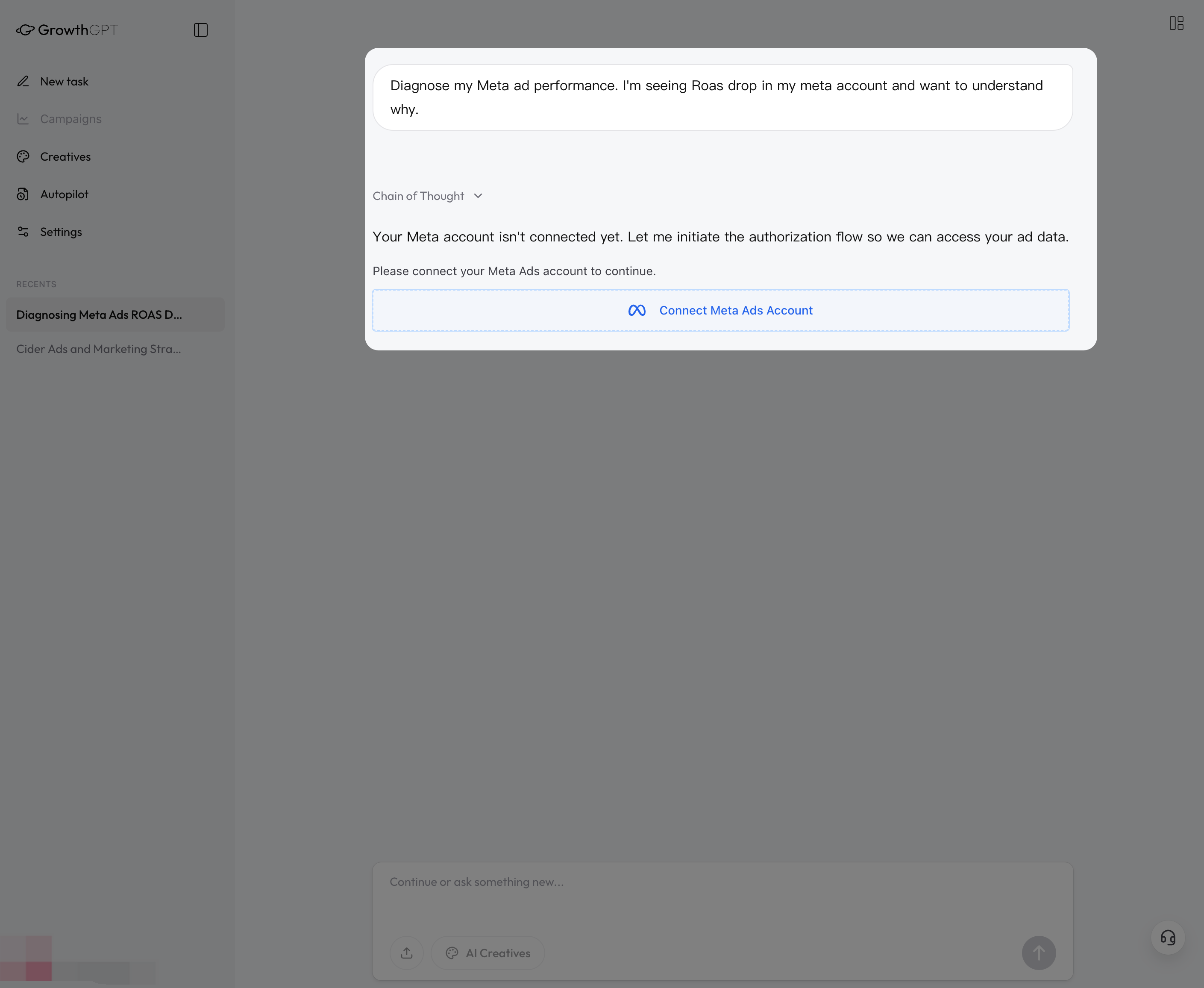
Even if you didn't ask to connect, just sending "Diagnose my ads" makes AI auto-detect that no account is linked and pop up a Connect Meta Ads button for you
Way B · Click the button in Settings
Sidebar → Settings → scroll to the Ad Account Connections section → find the platform you want and click Connect. Once authorized, head back to Settings and you'll see your account name.
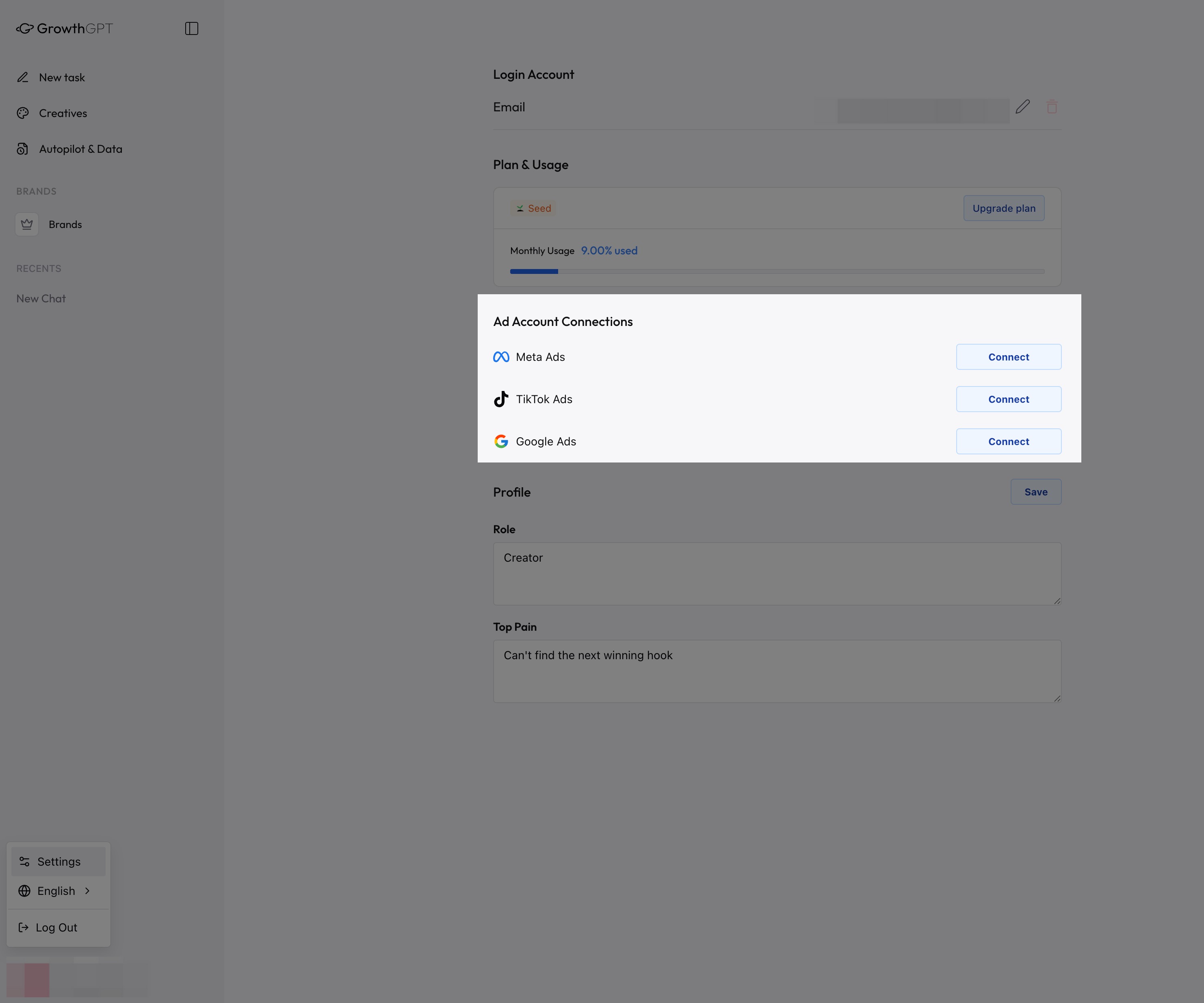
The Settings path suits people who prefer hunting for buttons — Meta, TikTok, and Google each have their own Connect button
Which platforms can you connect now
| Platform | Status | Notes |
|---|---|---|
| Meta Ads (Facebook + Instagram) | ✅ Live | All 6 objectives supported, CBO only (campaign-level budget), creative refresh supported |
| TikTok Ads | ✅ Live | Creation supports GMV Max (Product / Live) + Auction (Traffic / Video Views) + Smart+ Website / Smart+ App Promotion; auto-optimization is GMV Max only |
| Google Ads | ✅ Live | Creation supports PMax · Search · App; PMax auto-covers Search, YouTube, and Display placements (no standalone YouTube-only or Display-only campaigns); auto-optimization not yet supported — manual operations available (status / budget / bid / keywords / PMax text assets) |
- Connecting multiple platforms is no problem — AI sees as many as you link, and when you need it, you can have it run cross-platform comparisons
- Authorization works just like logging into any third-party site — it runs the standard OAuth 2.0 flow, AI never gets your password, and you can revoke access anytime from the ad platform's backend
- AI asks before it touches your account — publishing ads, changing budgets, pausing — anything that "spends money" requires your confirmation before it runs. AI never moves anything behind your back
One thing happens the moment you finish connecting
The instant authorization completes, AI doesn't just stop and wait for your next move — it immediately goes and pulls your accounts on its own, lays out every ad account under your Meta Business in a table, and asks: "Which account would you like to start with?" You don't have to say a word — AI takes over. That's the most immediate "wow" moment of connecting — feeling AI not just wait for commands but actively push things forward.
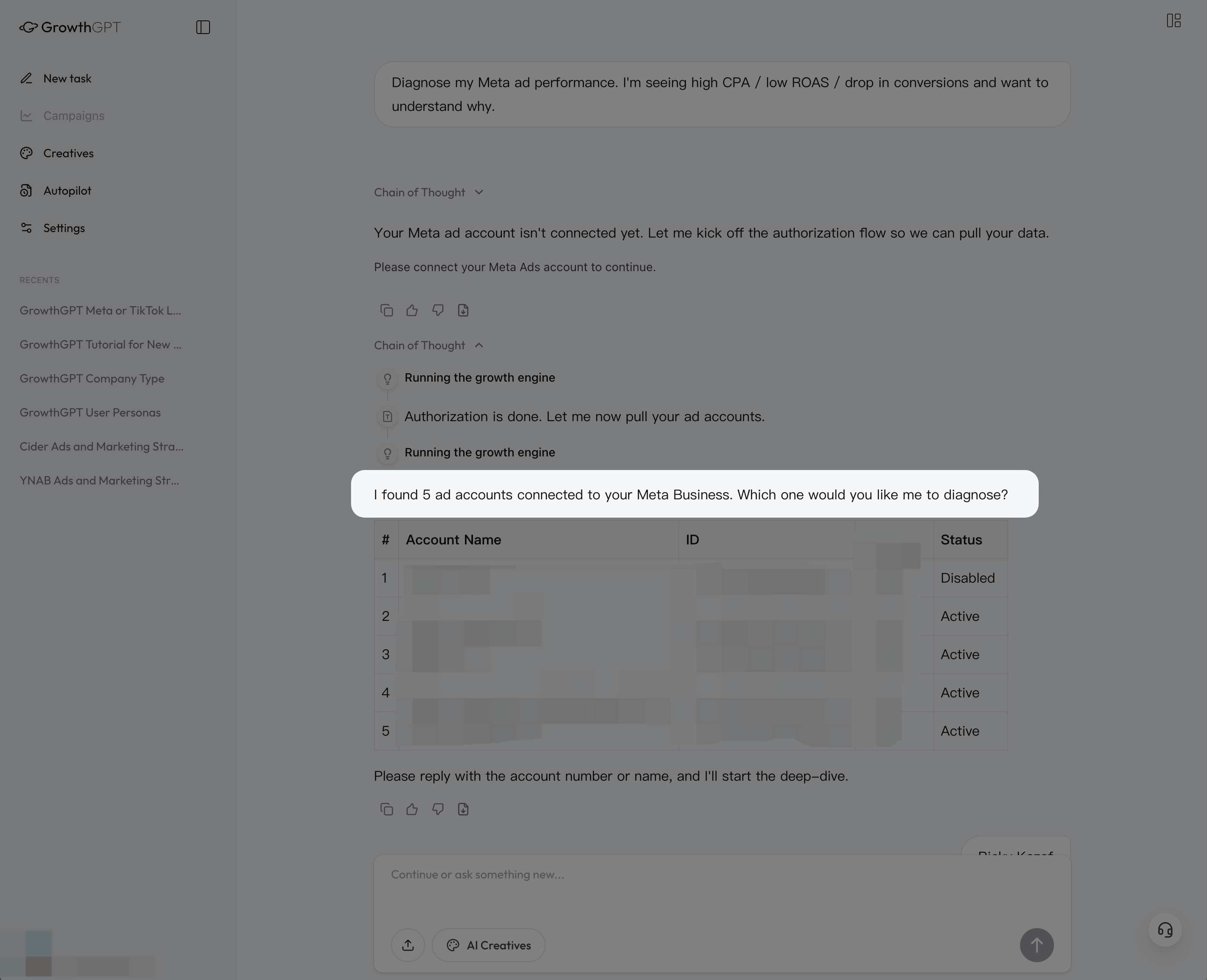
Connected → AI takes over · It went and pulled all your accounts on its own and listed them — say "use #3" and it gets to work
This is the trap new users fall into most: skipping this step and going straight to Diagnose Ad Performance, only for AI to have no data to look at, leaving you thinking "this product isn't much use." Whatever you do, don't skip it — connecting an account is what brings the product to life.
If something goes wrong during connection (the most common culprits are the account having no ad permissions, an insufficient Business Manager role, or the account being suspended), tell AI and it'll help you troubleshoot; if all else fails, reach out to CS.
30-Second Sign-Up + First Conversation
New to GrowthGPT? This article walks you through sign-up, login, and your first conversation. You'll see real output within 1 minute.
Your First AI Diagnostic Report
Right after connecting an account, try "Diagnose my ads over the last 7 days" — this article walks you through what each section of the AI report is telling you.