TikTok Ad Account Authorization
Agent says "no permission for your TikTok account," or the analysis can't pull it? Check your authorization chain by symptom.
Agent reporting "no permission for your TikTok account," or the analysis can't pull your account? It's almost always the authorization chain — work through the symptoms below in order.
Can't pull the ad account
Step 1 · Confirm the authorized email can find the account
Log in to TikTok Ads with the exact email you authorized to GrowthGPT, and search your target ad account (name or ID) under Select an account.
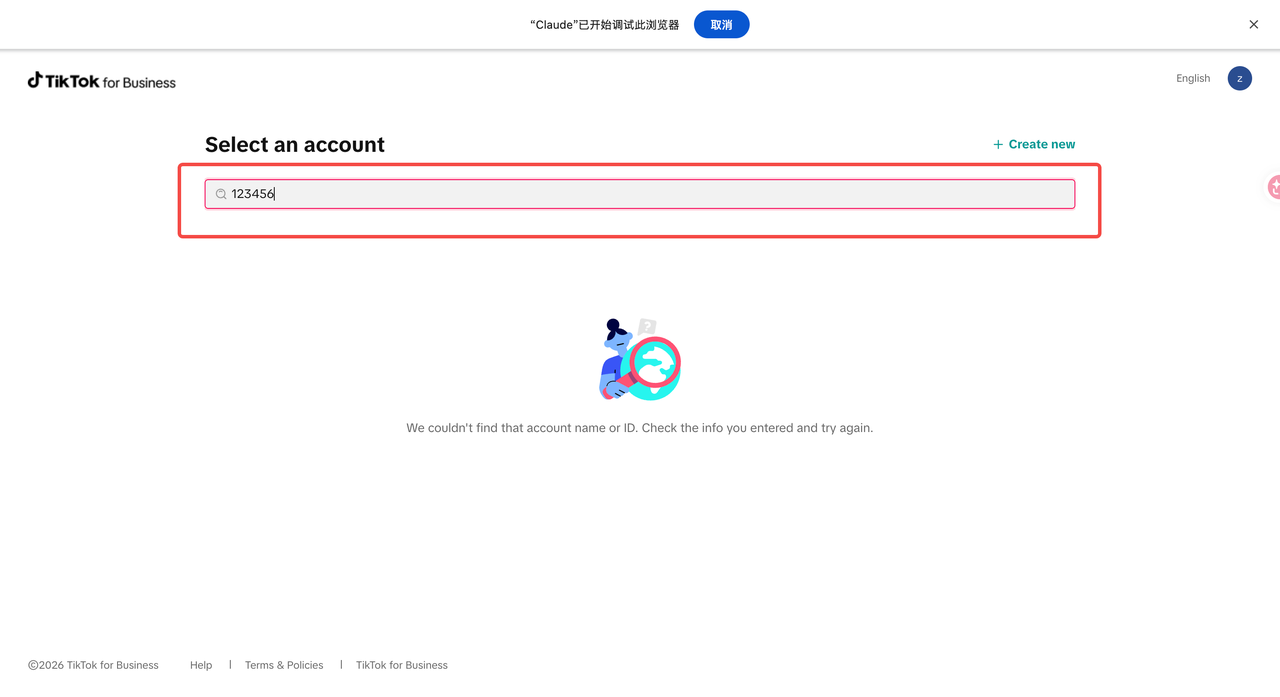
↑ If it's not there, you'll see "We couldn't find that account name or ID"
- Found it → authorization is fine; the issue is elsewhere, just retry the pull in GrowthGPT.
- Not found → authorization isn't in place, continue to Step 2.
Step 2 · The account is in a Business Center, but your email isn't authorized on this ad account
Ask the admin of the Business Center (BC) that owns the account to go to Accounts → open the target ad account → Members → click Assign new member:
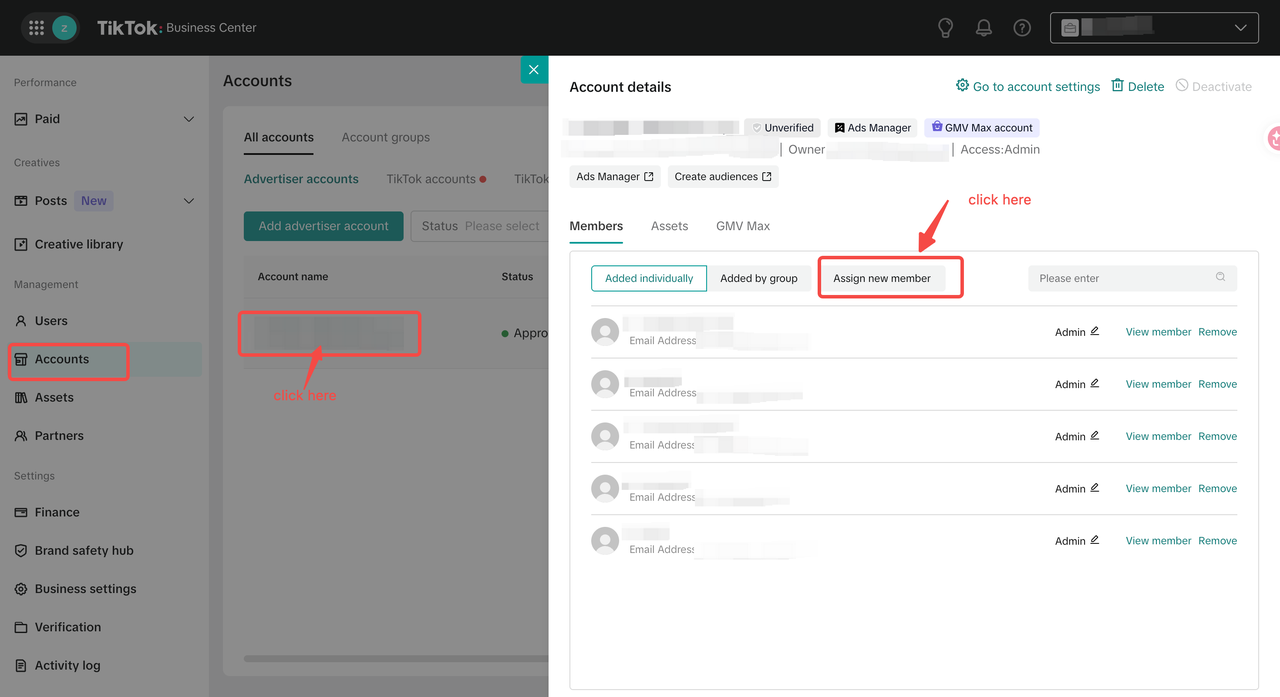
↑ BC → Accounts → select the account → Members → Assign new member
Enter your authorized email, pick a permission (Admin / Operator / Analyst — Analyst is enough for analysis), and click Confirm:
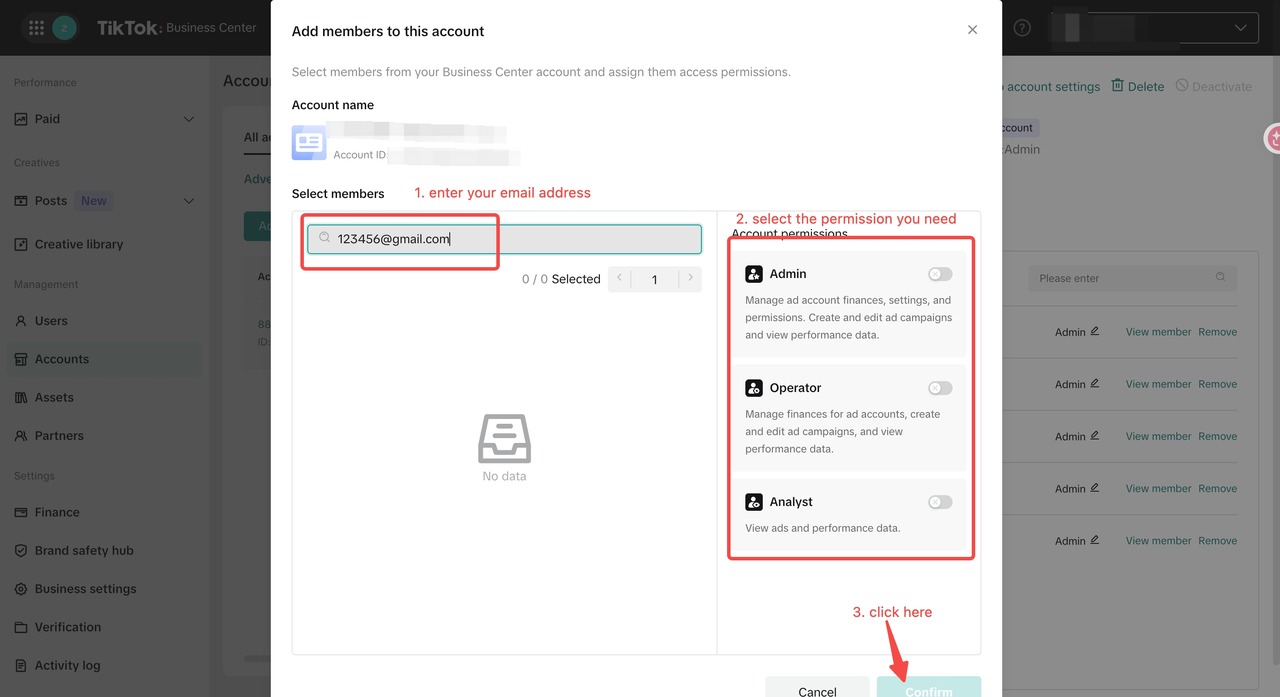
↑ ① enter the authorized email ② pick a permission ③ Confirm
Step 3 · Your email isn't in this Business Center yet
If the BC has never added your email, ask the BC admin to add you first: go to Users → click Add Members.
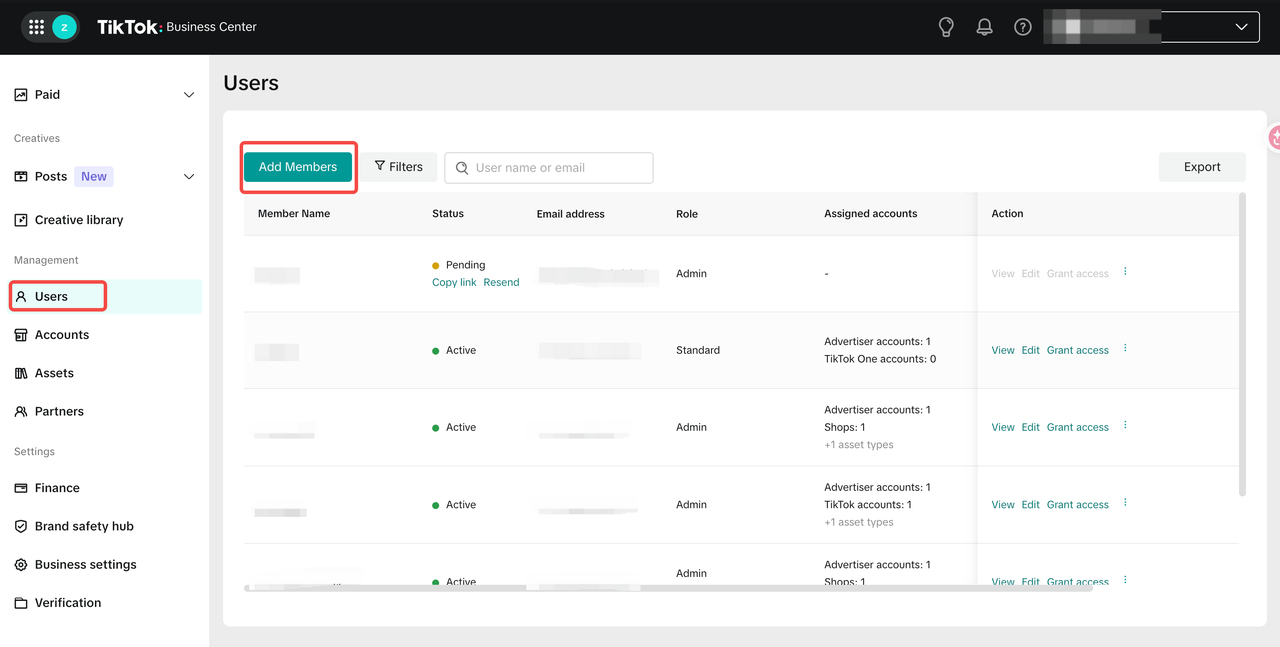
↑ BC → Users → Add Members
Fill in the email and name, set Assign role (Admin), then click Next:
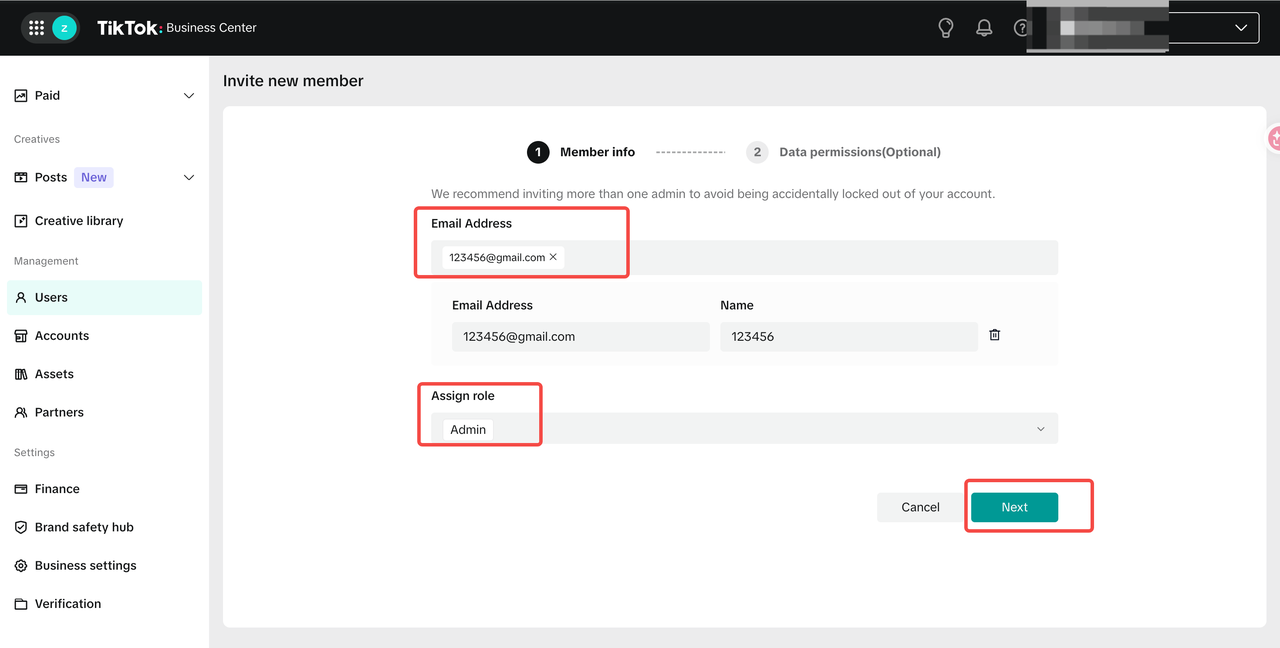
↑ Fill in Email Address and Name, set Assign role to Admin, click Next
On Data permissions (Grant access): pick a category under Categories (Advertiser account / Shops, etc.) → check the specific account → choose a Permission on the right → Save:
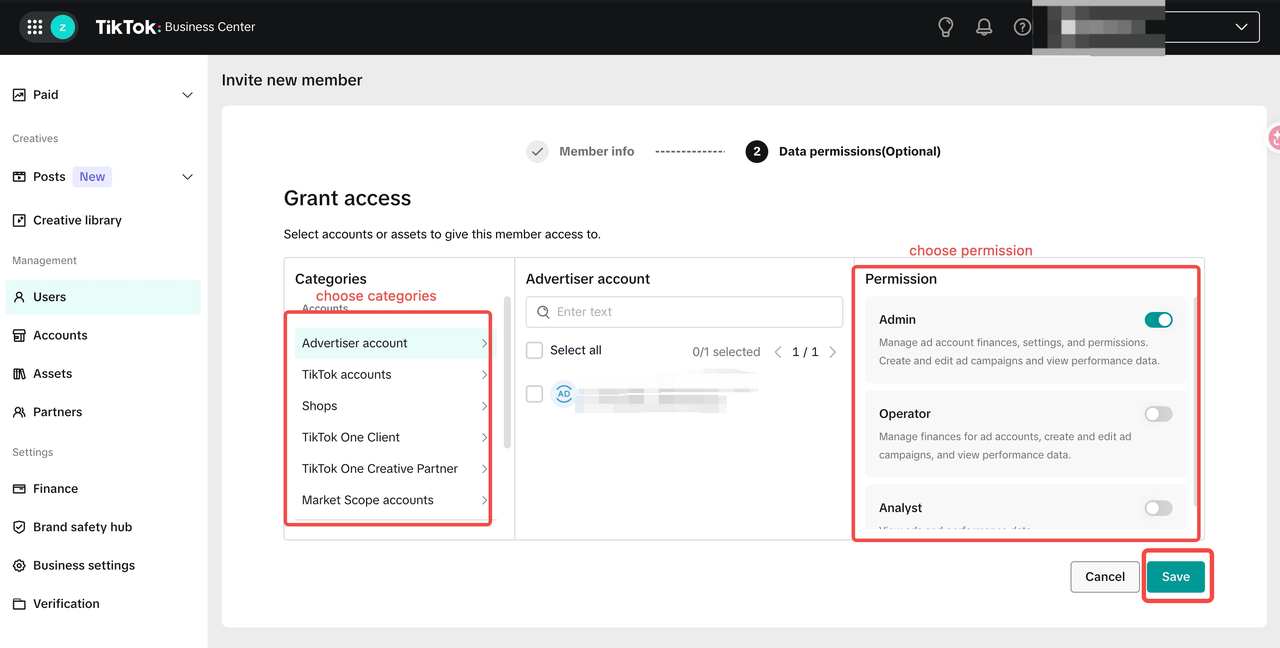
↑ Pick Categories → check the account → choose Permission (Admin / Operator / Analyst) → Save
After all three, retry the pull in GrowthGPT and the account should show up.
GMV Max error "Shop must belong to a Business Center account"
This error means the authorized email has no permission on that Shop. Ask the shop's admin to add the shop permission in the Business Center:
Go to Accounts → Shops → Add shop
On the BC's Accounts page, switch to the Shops tab and click Add shop:
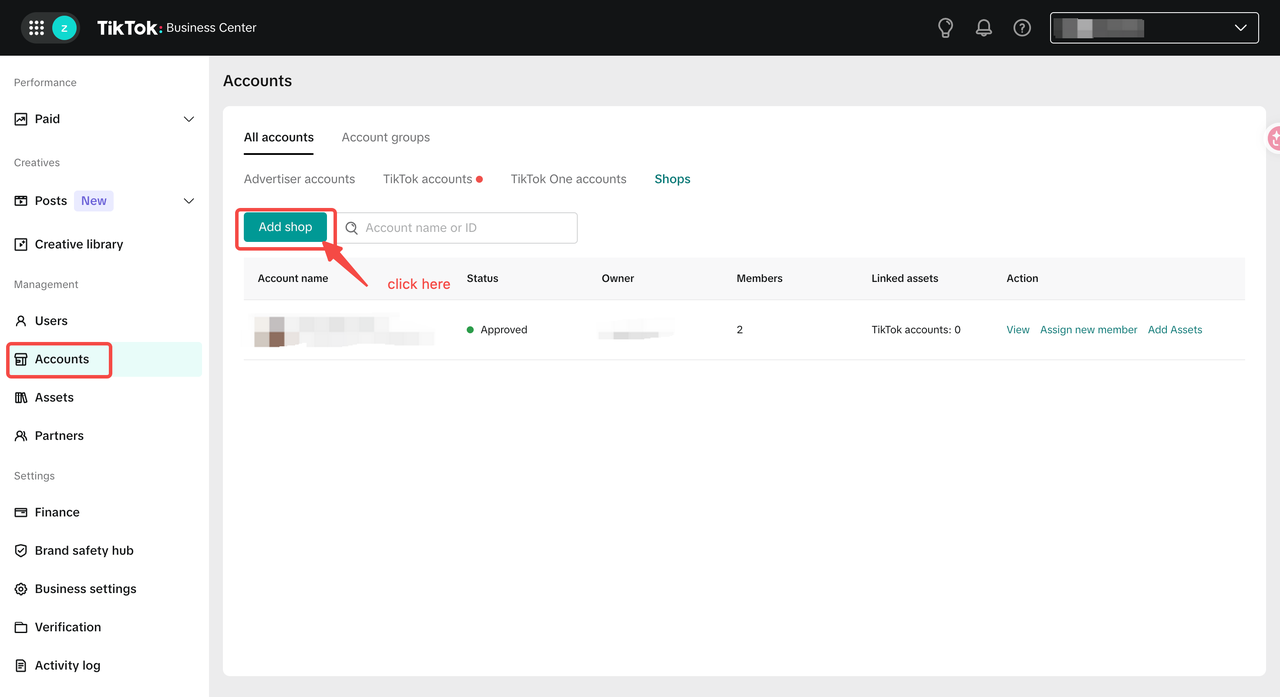
↑ BC → Accounts → Shops → Add shop
Request shop permission by role
In the dialog, pick one based on your role:
- Add a TikTok Shop — when you already have ads administrator access to that Shop.
- Request access to TikTok shop partners — when you don't; send an email request to the Shop's owner / admin.
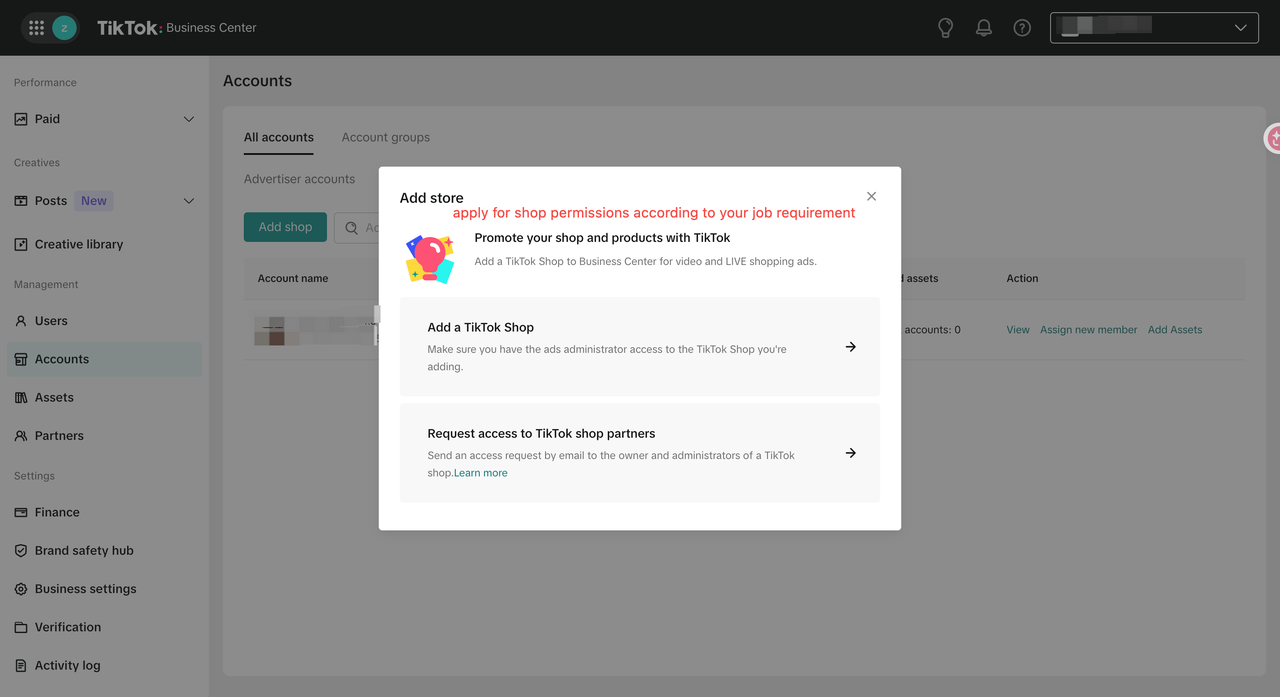
↑ Choose Add a TikTok Shop or Request access to TikTok shop partners based on your role
Once the shop permission is in place, the GMV Max error goes away.