
What Autopilot Is · 3 Steps to Get Started
Set goals and guardrails — let AI inspect your ad account every day, surface opportunities, cut risk losses, and generate optimization suggestions you can execute with one click.
What Autopilot is
Imagine you hired a "media buyer" who never clocks out — every day they go look at which ad in your account deserves more budget, which one should be paused, which one looks risky. They organize what they find into a checklist with data behind every item, and you glance at it to decide whether to act. That's Autopilot. Whether any action happens is still your call — AI never quietly changes your account behind your back.
Supported platforms and features
| Platform | What gets auto-optimized | Prerequisite |
|---|---|---|
| Meta Ads | Ad-level budget increase + pausing · Learning-period protection · Account anomaly alerts | ⚠️ Configure target CPA + budget cap in GrowthGPT first |
| TikTok Ads | Budget adjustment · ROAS target tuning · Low-performer pausing · Product coverage opportunity detection (auto-optimization covers GMV Max only) | ✅ Out of the box | Creation supports GMV Max (Product / Live) + Auction (Traffic / Video Views) + Smart+ Website / Smart+ App Promotion, but auto-optimization currently covers GMV Max only |
| Google Ads | — | 🚫 AI auto-optimization not yet available (advertising & analysis are supported) — but Custom Rules already supports Google auto-execution (pause / budget / bid / notify) |
Two things to know about Meta: ① AI only touches the Ad level — budget increases and pauses all happen on a single Ad. Changes at the Campaign or Ad Set level have to be done manually. ② Tell AI two numbers before you start: your target CPA + the most you'll spend per day. Set them once in GrowthGPT. That said, data analysis and manual operations aren't bound by these two points — any ad in your account (including ones built by hand in Meta's back end) can be analyzed. See #22 Feature Matrix for details.
Start Autopilot in 3 steps
Step 1 · Tell GrowthGPT you want to optimize your ads
Right now Autopilot doesn't run on a schedule by itself — you need to trigger it. Just drop a line in the chat:
"Run a Meta ad optimization check for me"
"Check how my TikTok ads are doing — anything to adjust?"
"Show me which campaigns I could scale up"
GrowthGPT pulls account data → analyzes performance → generates an optimization suggestion report (shown right in the chat as structured text). Build the habit of checking every 1-2 days.
Step 2 · Set your strategy preference (TikTok only)
The first time you use it, GrowthGPT asks for your strategy preference. This choice only affects the ROAS target adjustment direction for TikTok GMV Max — it doesn't affect budget-increase or pause decisions (those run on unified rules).
| Strategy | Best for | AI behavior (ROAS target only) |
|---|---|---|
| Volume first | New product push, grabbing market share | Underspending + ROAS far above target → lower the ROAS target to release traffic |
| Profit first | Stable phase, limited budget | Spending well + ROAS far above target → raise the ROAS target to filter for higher-quality traffic |
Common misconception: "Volume first" ≠ every operation gets more aggressive. It only changes the ROAS target direction; it won't make scaling more aggressive or pausing more lenient. Once set it sticks, and you can switch anytime.
Step 3 · Approve and execute
Once you've read the report, one line is enough:
"Execute everything"
"Just the budget increases — I'll look at the pauses later"
"Run suggestions 2 and 3, skip the rest"
Key safety design: every budget change and ad status change requires your explicit confirmation before it runs. GrowthGPT only analyzes and recommends — the final decision stays in your hands.
What a real optimization suggestion report looks like
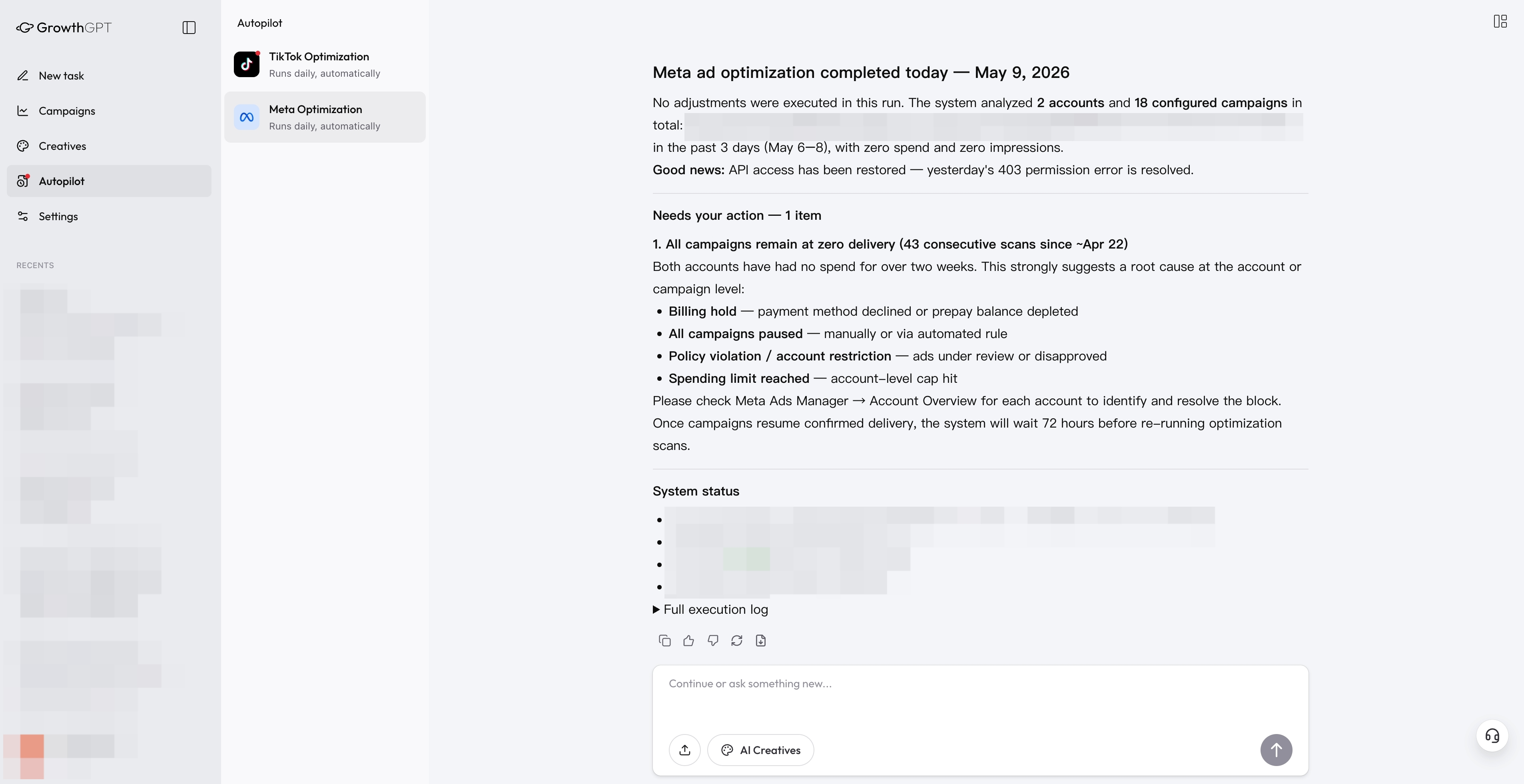
Daily Summary Report example · top execution overview + suggestions by section + Needs your action items + an expandable Full execution log — transparent and auditable end to end
What's in the report
The report AI gives you is split into blocks by operation type — you can tell at a glance which blocks to read:
| # | What this section says | Always there? |
|---|---|---|
| 1 | 🟢 Suggested budget increases — well-performing ads AI thinks deserve more spend | Usually |
| 2 | 🔴 Suggested pause / budget cut — underperformers AI thinks aren't worth more burn | Depends |
| 3 | 🎯 Suggested ROAS target changes — based on the strategy preference you picked | TikTok only |
| 4 | 👀 Needs your attention — AI spotted some signals but it's not yet time to act | Depends |
| 5 | 🆕 Suggested new ads — AI found "potential products in your catalog never advertised yet" | TikTok only |
Three "statuses" to keep straight
In the report you'll see three different "labels," and each calls for something different from you:
| Label | What it means | What you do |
|---|---|---|
| Needs your confirmation | AI has figured out exactly what to do and is just waiting for you to say "go" | Reply "confirm and execute" and you're done |
| Needs your action | An account-level issue AI can't solve (e.g. ad rejected in review, account frozen) | Go handle it manually in the ad platform's back end |
| Watch list | There's a hint of something but it's not yet time to act | Take a look, decide for yourself whether to act |
How it triggers · what it covers
- How to start a check — right now AI doesn't run on its own schedule; you have to send a line like "Run a Meta ad check for me"
- But scheduled ad on/off is supported — like "Pause this ad at 11pm on May 15," and AI executes right on time (see the next article)
- Works for both Meta and TikTok — you'll see two independent tasks in the left-side Autopilot module
- No action when there's nothing to do — when the data is stable, AI will proactively choose "no changes this run" rather than moving for the sake of moving
- Cooldown between actions — an ad AI just touched gets time to settle before being touched again, so the platform algorithm isn't disrupted by back-to-back changes
- New ads get left alone — ads still in the learning period are auto-skipped so the algorithm has enough data before any evaluation (see the next article)
- Meta and TikTok each mind their own — no automatic cross-platform budget reallocation
Not Happy? Just Say It Normally + 4 FAQs
Plain talk works — 5 "say-it-normally vs. over-explaining" comparisons, the "redo" magic word, and 4 most common questions.
Autopilot Advanced · Learning Protection · Scheduled Tasks · Best Practices
Learning-period protection, "watch list" categories, TikTok product coverage analysis, scheduled tasks, 5 best practices + 3 things to avoid + FAQ.