
Custom Rules Engine — Complete Guide
Autopilot's rule-based execution capability: define IF…THEN… conditions and actions, and let rules run automatically on schedule — from creation to activation to reviewing results, all in one guide.
Where Custom Rules Fits Within Autopilot
First, get the framing right: Custom Rules is a capability inside Autopilot — not a separate product, and not equal to Autopilot itself.
Autopilot's default mode is AI Inspection — it proactively diagnoses your account, gives evidence-backed optimization suggestions, and executes after you confirm. Custom Rules adds a layer of deterministic execution on top: take the repetitive operations you've already thought through (stop-loss, scaling, alerts), write them as fixed rules, and let them run on schedule — no need to wait for an AI inspection each time.
Think of it as a transitional capability on Autopilot's path toward "more automatic" — AI Inspection handles "surfacing what you didn't think of," Custom Rules handles "auto-executing what you've already decided." They work together; it's not either-or, and neither replaces the other:
| Dimension | AI Inspection (Autopilot's default mode) | Custom Rules (Autopilot's rule-based execution layer) |
|---|---|---|
| Trigger | You initiate manually, or system pushes periodic scan results | Runs automatically on your defined cron schedule (hourly / daily / weekly) |
| Decision maker | AI analyzes and recommends — you confirm each action before execution | You define the IF…THEN… logic upfront — matched entities are auto-executed |
| Human confirmation required | ✅ Every action needs approval | ❌ Fully automatic after activation (except when scope protection triggers) |
| Best for | Uncertain situations where you want AI diagnosis before deciding | Clear, repetitive logic: stop-loss, scale winners, alert notifications |
| Coverage breadth | AI scans holistically, may surface issues you didn't think of | Only evaluates conditions you defined — precise but won't "discover" new problems |
Can both run simultaneously? Yes — they are two parts of the same Autopilot, covering the same ads without interfering with each other.
What happens when the same ad is covered by both? Custom Rules run on schedule and auto-execute at each slot. AI Inspection only evaluates when you manually trigger it. If Custom Rules already paused an Ad Set, AI Inspection will read its current status as paused and won't suggest pausing it again. There's no priority conflict — whichever runs first takes effect, and the later one works with the latest state.
Safety Mechanisms
Pausing / Disabling / Deleting a Rule
| Action | Effect | How to do it |
|---|---|---|
| Pause | Rule is preserved but won't run at next scheduled slot | Click pause on the Autopilot detail page, or say "pause rule XX" in chat |
| Resume | Recalculates next_run_at, takes effect at the next hour | Same — click resume |
| Delete | Soft delete — no longer visible or triggered | Say "delete rule XX" in chat, or use the page UI |
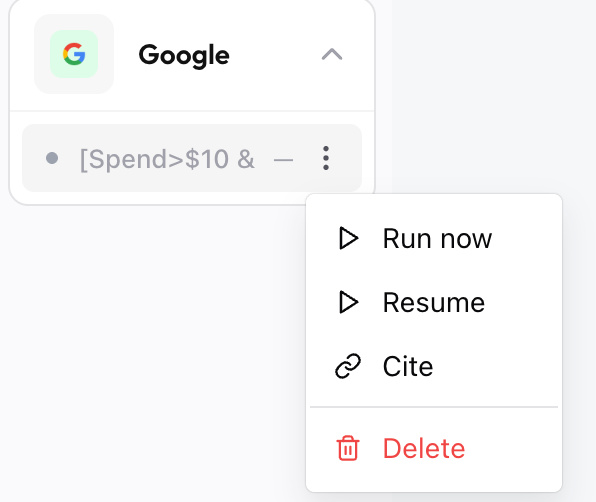
↑ The rule list on the Autopilot detail page — each rule shows a status badge (Active / Paused / Error) with pause / resume / delete on the right
Does it Respect "Learning Phase Protection" and "Budget Caps"?
- Learning phase protection: Custom Rules V1 does not have built-in platform learning phase detection. If you don't want rules to act on ads still in learning, add a creation time condition (e.g.,
since_creationwindow with a minimum days threshold), or rely on AI Inspection's learning phase protection. - Budget caps: The
adjust_budgetaction supports acapparameter. Once set, no matter how many times the rule fires, the budget will never exceed your cap. The system will suggest adding a cap during creation but won't force it.
Can I Roll Back a Misfire?
One-click rollback is not supported yet. If a rule paused an Ad, you'll need to manually resume it (or create a reverse rule). Best practice: start new rules with notify only for a few days, confirm the hit logic is correct, then switch to auto-execution.
"Notify First, Auto-Execute Later" — The Transition Approach
Fully supported. Set the action to notify when creating. Matched results are recorded in the action logs, viewable in your inspection report. After observing for a period and confirming the logic is sound, edit the rule to change the action to pause or adjust_budget — no need to delete and recreate.
Operations × Platforms × Levels Matrix
Full Support Table
| Operation | Meta | TikTok (Auction / Smart+) | TikTok GMV Max | Google Ads |
|---|---|---|---|---|
| pause | Campaign ✅ · Ad Set ✅ · Ad ✅ | Campaign ✅ · Ad Group ✅ · Ad ✅ | Campaign ✅ | Campaign ✅ · Ad Group ✅ · Ad ❌ (not supported yet) |
| resume | Campaign ✅ · Ad Set ✅ · Ad ✅ | Campaign ✅ · Ad Group ✅ · Ad ✅ | Campaign ✅ | Campaign ✅ · Ad Group ✅ · Ad ❌ (not supported yet) |
| adjust_budget | Campaign ✅ · Ad Set ✅ | Campaign ✅ · Ad Group ✅ | Campaign ✅ | Campaign ✅ · Ad Group ❌ (Google has no ad group budget) |
| adjust_bid_target | Campaign ❌ · Ad Set ✅ | Campaign ✅ · Ad Group ✅ | Campaign ✅ (requires VO_MIN_ROAS) | Campaign ✅ · Ad Group ✅ |
| notify | All levels ✅ | All levels ✅ | All levels ✅ | All levels ✅ |
| boost | — | — | Creative level ✅ | — |
| exclude | — | — | Creative level ✅ (irreversible) | — |
Where Does adjust_budget Land Under CBO / ABO?
- Meta CBO enabled: Budget lives at the Campaign level. Adjusting Ad Set budget has no effect (auto-skipped at execution).
- Meta ABO (non-CBO): Budget lives at the Ad Set level. Adjusting Campaign budget has no effect.
- Best practice: If your account mixes CBO and ABO, set both Campaign and Ad Set items in the same rule. The system auto-determines which level is effective and skips the inapplicable one. You don't need to check whether each Campaign is CBO or ABO first.
What Exactly Does Google Ads Support?
Google Ads fully supports pause / resume / adjust_budget (Campaign level) / adjust_bid_target (Campaign and Ad Group levels) / notify. Ad-level pause/resume is not supported yet. Google has no ad group budget concept, so adjust_budget only applies at the Campaign level.
Condition Capabilities — Full Reference
These metrics, time windows, and operators ultimately combine into a rule's condition in the UI, like this:
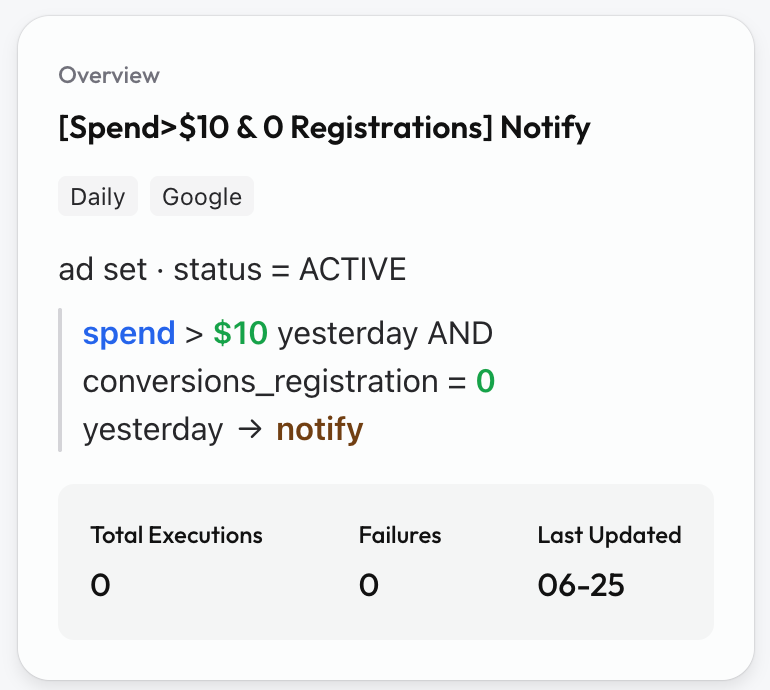
↑ What a rule looks like in the UI — metrics (spend / conversions_registration) + operators + time window (yesterday) + action (notify) combine into a condition
Available Metrics
The following are commonly used metrics (not a closed whitelist — the system continues to expand):
| Metric unified_key | Description | Notes |
|---|---|---|
spend | Total spend | |
impressions | Impressions | |
reach | Unique reach | Google: Reach/Video campaigns only |
frequency | Frequency | Google: Reach/Video campaigns only |
cpm | Cost per mille | |
clicks | Clicks | |
ctr | Click-through rate | Stored as decimal (1% = 0.01) |
cpc | Cost per click | |
conversions | Conversions (generic) | Recommend specifying the exact event |
cost_per_conversion | Cost per conversion | Same as above |
cost_per_result | Cost per result (based on optimization goal) | |
results | Results (based on optimization goal) | |
roas | Return on ad spend | TikTok requires confirming conversion source |
conversion_value | Conversion value | TikTok requires confirming conversion source |
CVR | Conversion rate | Calculated by system, not a native field |
adset_budget | Current Ad Set budget | Not applicable to Google |
campaign_budget | Current Campaign budget | |
status | Delivery status |
For conversion-related metrics, we recommend specifying the exact event: cost_per_install, cost_per_purchase, cost_per_add_to_cart, etc. When you say "CPA," the system will ask: "Which event's cost? Install / purchase / add-to-cart?" to help you target precisely.
Time Windows
| Window | Meaning |
|---|---|
today | Current day cumulative (based on account timezone) |
yesterday | Full previous day |
last_7d / last_14d / last_30d | Past N days (excluding today) |
since_creation | From ad creation to now, max 30-day truncation |
[3, 7] (custom range) | Day 3 through day 7 ago |
Operators
| Operator | Usage |
|---|---|
> < >= <= = | Basic comparison |
between | Range check (e.g., spend between $50–$200) |
change_pct | Period-over-period percentage change |
Condition Logic (AND / OR)
- AND (all must be met): Wrap multiple conditions in
alllogic. - OR (any one triggers): Wrap multiple conditions in
anylogic. - Nested combinations supported: e.g., "(spend > $50 AND CPA > $15) OR (spend > $100 AND conversions = 0)".
Consecutive Days / Consecutive Hours
consecutive_days: N(N ≤ 30): Each of the past N days must individually satisfy the condition.consecutive_hours: N(N ≤ 24): Each of the past N hours must individually satisfy the condition.
Difference from last_Nd: last_7d checks whether the 7-day aggregate exceeds the threshold; consecutive_days: 7 checks whether each individual day exceeds it — the latter is stricter, suitable for "sustained poor performance before acting" scenarios.
Scheduling
Supported Frequencies
| Frequency | Example | Notes |
|---|---|---|
| Hourly | Runs every hour on the hour | Minimum granularity |
| Every N hours | Every 2 / 3 / 4 hours | |
| Daily at a fixed hour | Every day at 09:00 | Most common |
| Daily at multiple hours | Every hour from 09:00 to 18:00 | For intensive daytime monitoring |
| Weekly at a fixed time | Every Monday at 09:00 | For weekly notification-type rules |
Minimum granularity is 1 hour, on the hour only. If you ask for "every 30 minutes," the system will inform you the minimum is 1 hour and adjust accordingly.
One-time schedule (run once only): Not natively supported yet. Workaround: create the rule, let it run once, then manually pause it.
How Is Timezone Determined?
The schedule's timezone is specified when you create the rule. The system defaults to your account timezone, which you can override. For example, if your account timezone is America/Los_Angeles, setting "daily 09:00" means 9 AM Pacific Time.
How Are yesterday / today Calculated?
All time windows are based on account timezone. yesterday = previous day 00:00–23:59 in account timezone. today = current day 00:00 to query time in account timezone. The system handles timezone conversion automatically.
Scope
Rules can precisely define the target scope:
| Dimension | Capability |
|---|---|
| Account scope | Specify particular account IDs (e.g., act_1615xxx); if unspecified, defaults to all accounts authorized on that platform |
| Level | Determined by apply_to: campaign / ad_set (ad_group) / ad |
| Status filter | Defaults to ACTIVE entities only; for resume actions, defaults to filtering PAUSED |
| Additional filters | Filter by objective, name contains/excludes, ID list, etc. to narrow scope |
You don't need to target "everything" — you can scope down to "Account A, objective contains sales, name contains 'US-', Ad Set level."
Multi-Rule Conflict Handling
At Creation: Conflict Detection
When you create a new rule, the system automatically compares it against existing rules on the same channel:
- Conflicting operations (one wants to pause, another wants to increase budget, with overlapping scope) → System prompts you to confirm: intentional separation of duties, or should you add mutual exclusion conditions?
- Duplicate / mergeable rules (highly similar conditions, same-direction operations) → Suggests merging into one to avoid stacking effects (e.g., two rules each reducing by 20% → effective reduction ≈ −36%).
These are advisory prompts only — they do not block activation. You can dismiss them and proceed.
At Runtime: Same-Cycle Conflict
If the same ad is matched by two rules in the same execution cycle with mutually exclusive operations (one stops, one scales):
- Conflicting operations are both skipped — neither executes.
- Conflict details are recorded in the inspection report's anomaly section.
- You need to adjust rule logic to eliminate the conflict.
There is no priority or weight mechanism currently — conflicts default to conservative inaction. Recommendation: use scope_filter to isolate ranges between different rules (e.g., one manages "ROAS > 2 winners," another manages "CPA > $30 losers" — naturally mutually exclusive).
Creation Flow: Complete Walkthrough
Here's a real example demonstrating the full process.
Your request: "In my Meta accounts, for Ad Sets that spent over $50 but CPA is above $15, automatically reduce budget by 20% daily, with a daily budget floor of $30. Run every day at 10 AM."
Step 1: Natural Language Description
Just tell GrowthGPT the above in plain language. Chinese or English both work. No code required, no need to know field names.
Step 2: Intent Parsing
The system automatically extracts 7 dimensions:
| Dimension | Parsed Result |
|---|---|
| channel | Meta |
| apply_to | ad_set |
| scope_filter | status = ACTIVE (default) |
| conditions | spend > $50 (yesterday) AND cost_per_result > $15 (yesterday) |
| actions | adjust_budget −20%, floor = $30 |
| schedule | daily 10:00 (account timezone) |
| name | High CPA Budget Reduction (auto-generated) |
If there's ambiguity, the system asks once. For example, if you say "CPA," it will ask: "Which event's cost? Install / purchase / add-to-cart? Or just the optimization goal's cost per result?"
Step 3: Feasibility Check
The system auto-validates:
- Does Meta Ad Set level support adjust_budget? → ✅
- Is cost_per_result available on Meta? → ✅
- Does −20% adjustment exceed the ±50% advisory limit? → No ✅
- Pure ratio rule missing a base threshold? → Already has spend > $50, ✅ no additional prompt needed
Step 4: Rule Card Draft
The system outputs a text-based rule card:
Rule name: High CPA Budget Reduction Channel: Meta Schedule: Daily 10:00 Scope: All accounts · Ad Set · status = ACTIVE Conditions: spend > $50 yesterday AND cost_per_result > $15 yesterday Actions: Reduce daily budget by 20%, floor $30
⚠️ Note: With continuous budget reduction, once the budget hits the $30 floor, no further adjustments will be made.
At this point the system pauses and waits for you to confirm the draft — verify conditions, actions, and scope are correct before proceeding.
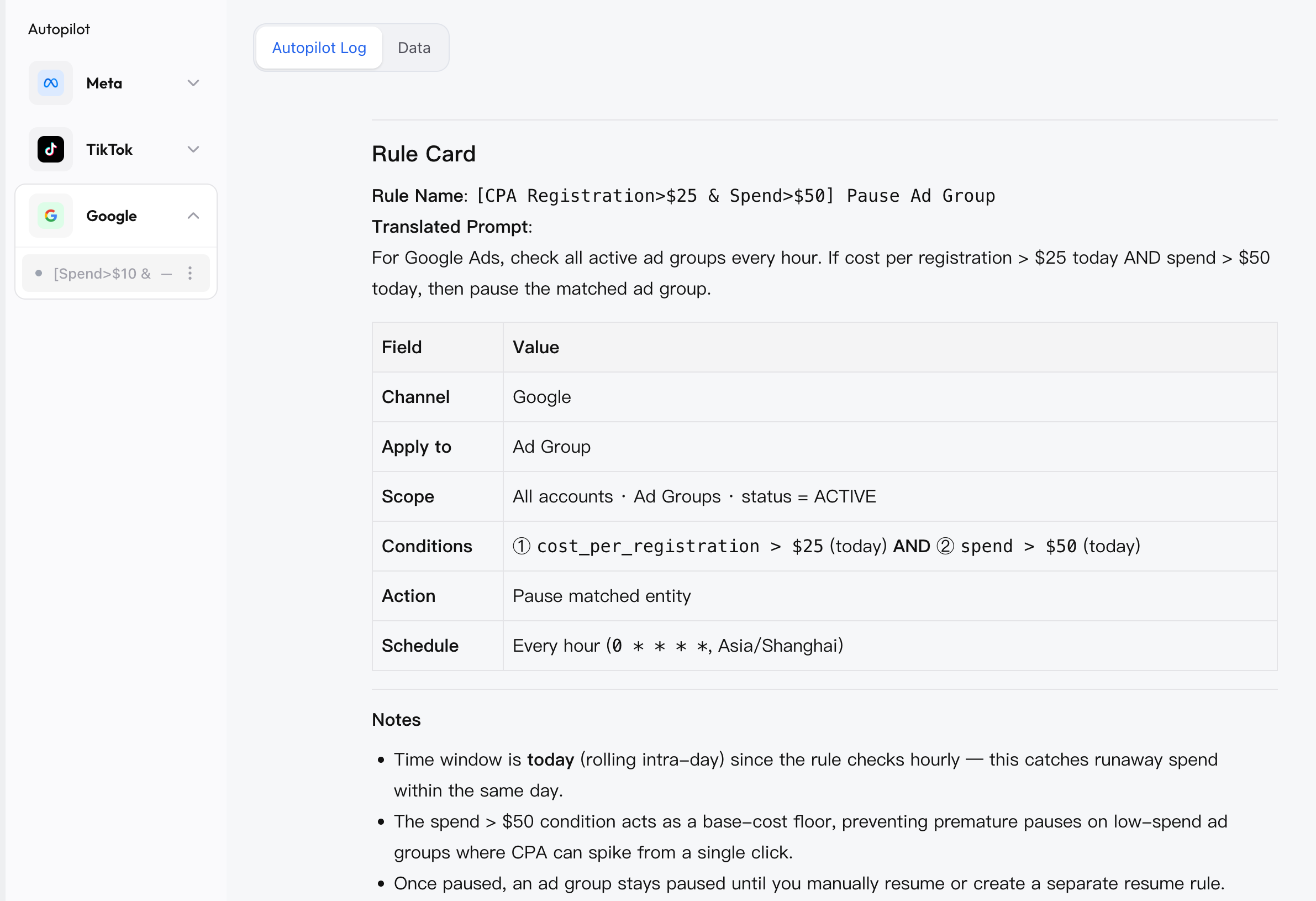
↑ The Rule Card GrowthGPT outputs in chat: rule name, channel, schedule, conditions, actions, plus the protection note at the bottom
Step 5: Dry Run
After you confirm the draft, the system runs a simulation (no platform changes) — applies your real account data against the conditions to see how many Ad Sets would be matched and what percentage of total spend they represent.
Possible outcomes:
Normal: "Matched 3 Ad Sets, representing 18% of yesterday's spend, all meeting spend > $50 and cost_per_result > $15." → Proceeds to confirmation card.
Dry Run incomplete: Some account data didn't return (common reasons: account just authorized, no spend yesterday, platform API delay). The system marks it as Dry Run incomplete and doesn't show match counts. You can choose:
- Activate anyway — accounts with missing data will auto-skip during actual execution (circuit breaker), no misfire risk.
- Wait a day — retry Dry Run after data normalizes.
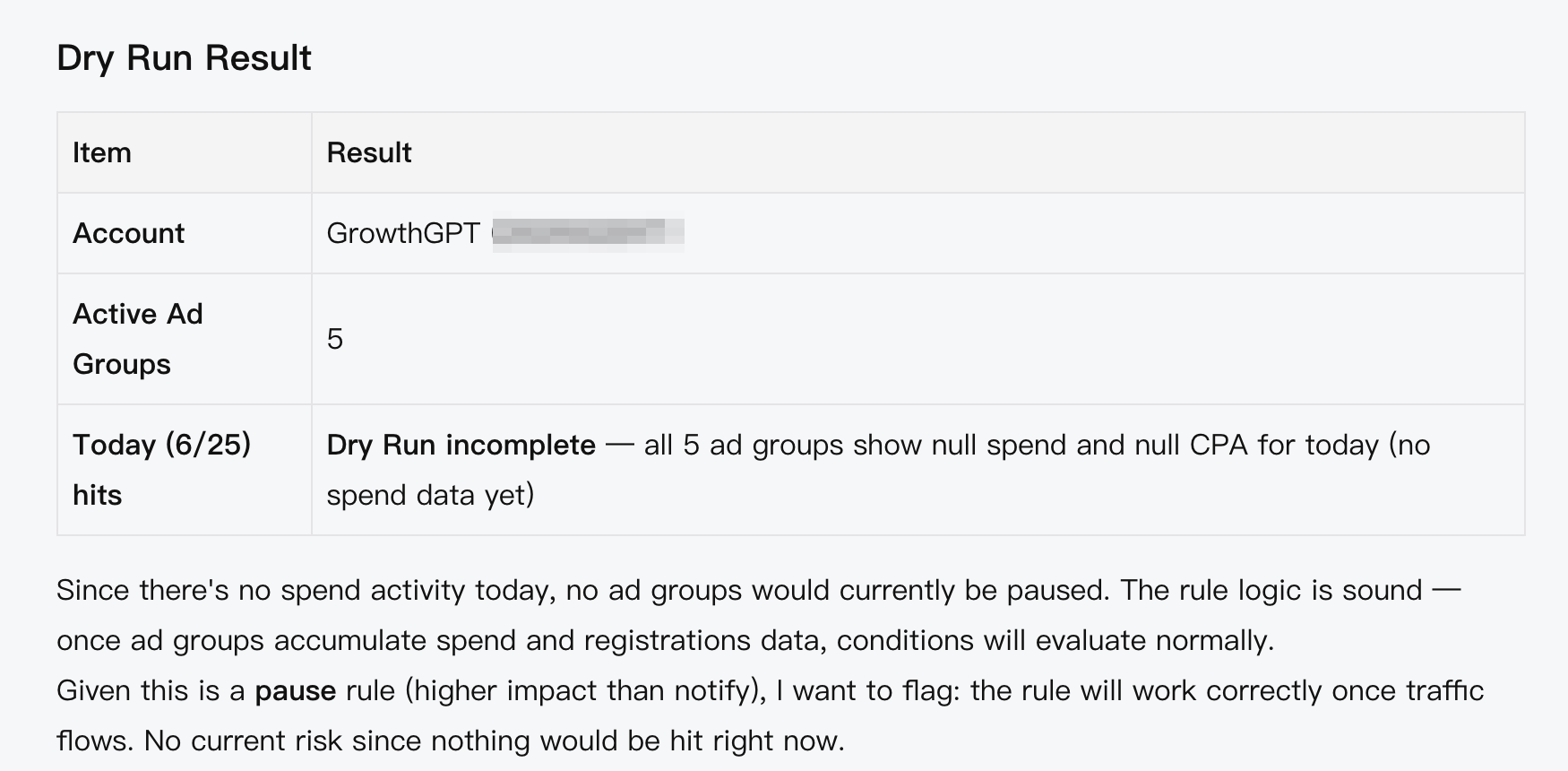
↑ Dry Run feedback: matched Ad Set count and share of yesterday's spend; incomplete data is flagged
Step 6: Confirm & Activate
The system displays a confirmation card with the final rule summary (rule name + schedule + scope + conditions → actions).
- Click Active → Rule is saved and goes live, awaiting the next scheduled trigger.
- Click Cancel → Not created, return to chat to continue editing.
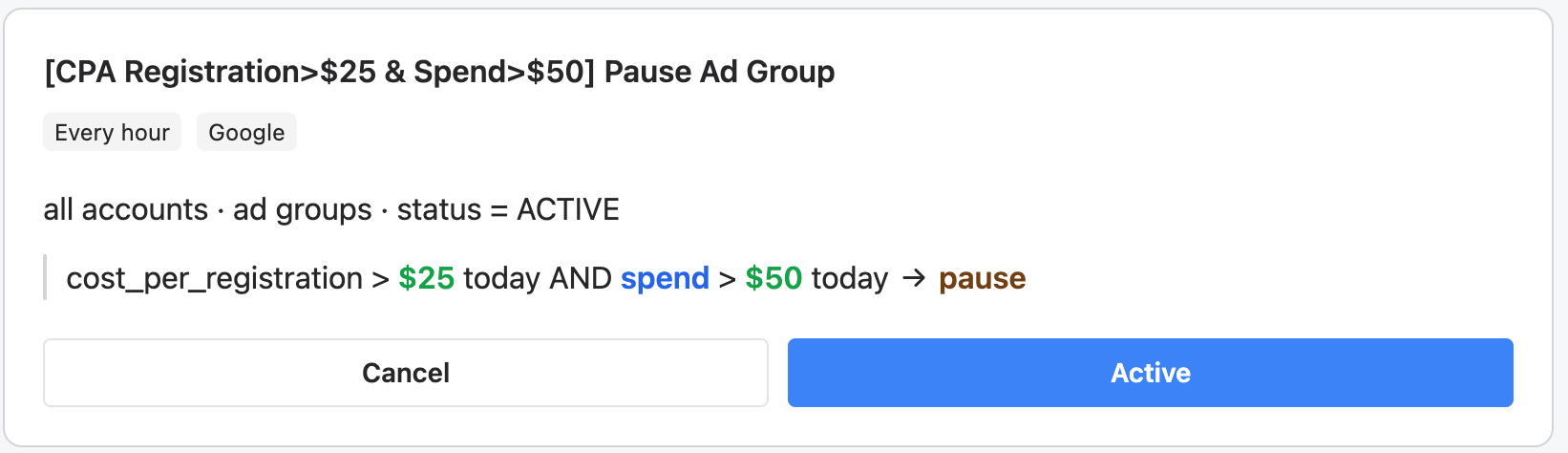
↑ Confirmation card: rule name + channel badge on top, conditions → actions in the middle; only clicking Active activates it
After Activation: Where to See Results
| View | Content | Where to find it |
|---|---|---|
| Run Inspection | Complete report for each execution: entities scanned, matched, actions taken, items skipped, anomalies | Autopilot detail page, click the rule's execution history |
| Action Logs | Individual action records: which Ad Set was adjusted, before/after values, timestamp | Expand details within the inspection report |
| Notify rules | Match results recorded in Action Logs; view "which ads were matched this time" in the inspection report | Same as above |
You can also ask directly in chat: "Which ads did the 'High CPA Budget Reduction' rule match today?" GrowthGPT will pull up the execution logs for you.
adjust_budget / adjust_bid_target — Adjustment Rules
adjust_budget
| Item | Rule |
|---|---|
| Adjustment method | Percentage (e.g., +30%, −20%), calculated on current budget |
| Single adjustment advisory limit | ±50%. System suggests stepping if exceeded (does not hard-block) |
| cap (ceiling) / floor (minimum) | Optional. Cap prevents unlimited growth; floor prevents unusable levels |
| Platform minimum budget | Meta ≥ $1/day; TikTok Ad Group ≥ $20/day; adjustments resulting in below-minimum will not execute |
| Cap constraint | ✅ If cap = $500, even with daily +30% the budget won't exceed $500 |
adjust_bid_target
| Item | Rule |
|---|---|
| Adjustment method | Percentage (e.g., +10%, −15%), calculated on current Target CPA or Target ROAS |
| Single adjustment advisory limit | ±30%. System warns if exceeded (does not hard-block) |
| Prerequisite | Only adjusts the target value (Target CPA amount / Target ROAS multiplier), does not change bid strategy type |
| cap / floor | Supported. Prevents bid target from drifting beyond reasonable range |
| Strategy matching | System checks before execution if the current bid strategy is compatible — e.g., if you set adjust Target CPA but the Ad Set uses Lowest Cost (no target value) → auto-skips, no error |
FAQ
Q: How is Custom Rules different from Meta / TikTok / Google's built-in automated rules?
| Dimension | Platform Built-in Rules | GrowthGPT Custom Rules |
|---|---|---|
| Cross-platform | Each platform has its own interface and syntax | One logic set covers Meta + TikTok + Google, unified management |
| Creation method | Navigate to platform backend, manually select fields and conditions | Natural language description, AI translates into structured rules |
| Metric semantics | Each platform's own metric names | Unified metric semantics (e.g., cost_per_result), system auto-maps to each platform's native fields |
| Conflict management | Platforms don't check if your rules contradict each other | Auto-detects conflicts at creation + runtime conflict protection |
| Dry Run | Most platforms don't offer preview | Yes. Simulate match scope and impact before activation |
| Execution logs | Each platform's own log format | Unified inspection reports, cross-platform single-view |
| AI integration | Completely separate from platform rules | Can run in parallel with Autopilot AI Inspection mode |
| GMV Max coverage | TikTok's platform automation rules have limited coverage | Supports Campaign pause/budget/bid + creative-level boost/exclude |
In short: if you only run one platform with simple rules — built-in rules are fine. If you run multiple platforms, want natural-language rule creation, want Dry Run and conflict protection — Custom Rules is the better fit.
Q: How does it compare to third-party SaaS (Revealbot, Madgicx, Smartly)?
| Dimension | Third-party SaaS | GrowthGPT Custom Rules |
|---|---|---|
| Creation method | GUI forms, still requires manual field selection | Natural language → AI structured, lower barrier |
| Integration | Standalone tool, separate login | Built into the same chat interface as ad creation + analysis + optimization |
| AI diagnosis | Pure rule engine only | Rule engine + AI inspection dual mode |
| Pricing | Additional subscription ($50–$500/month) | Included in GrowthGPT plan |
Q: What are the capability boundaries — what can't Custom Rules do?
| Not Supported Yet | Workaround |
|---|---|
| Change bid strategy type (e.g., Cost Cap → Lowest Cost) | Manual platform operation |
| Modify creative content | Use GrowthGPT creative tools or manual |
| Modify audience targeting | Manual platform operation |
| One-click rollback of previous action | Create a reverse rule or manually restore |
| Google Ad-level pause/resume | Not supported yet; Ad Group level is the lowest |
| Conditions based on Attribution Window switching | Not supported yet |
| Priority/weight between rules | Not supported yet; use scope_filter to isolate |
| One-time schedule (run once and stop) | Run once, then manually pause |
Q: How many rules can I create per channel?
Maximum 10 rules per channel. If you hit the limit, consider merging similar rules — one rule can contain multiple "condition → action" mappings.
Q: How many actions can a single rule have?
3 execution actions maximum. The system suggests splitting into multiple rules if exceeded.
Q: What happens with consecutive failures?
If the same rule errors 3 consecutive times → auto-paused, status changes to Error, system notifies you. Investigate the issue and manually resume when ready.
Q: Will it misfire if data is unavailable (no spend yesterday, newly authorized account)?
No. Circuit breaker mechanism — when retrieved data is empty (especially spend), the rule skips entirely for that cycle with no actions taken, recorded as "data missing, skipped" in the inspection report.
Q: How are ratio metrics (e.g., CPA) calculated when there are zero conversions?
- Spent money but conversions = 0 → CPA = +∞ (infinity), will match "CPA > XX" conditions. This is intentional: spending with zero results → should stop loss.
- No spend and no conversions (0/0) → Entity is skipped, no match, no action.
- Recommendation: add a base threshold to pure-ratio rules (e.g.,
spend > $30) to avoid premature kills on minimal spend. The system proactively reminds you during creation.
Autopilot Advanced · Learning Protection · Scheduled Tasks · Best Practices
Learning-period protection, "watch list" categories, TikTok product coverage analysis, scheduled tasks, 5 best practices + 3 things to avoid + FAQ.
Ad Data Viewer (Autopilot → Data)
The Campaigns dashboard has been merged into Autopilot. This article covers the new entry point and how to read it.